
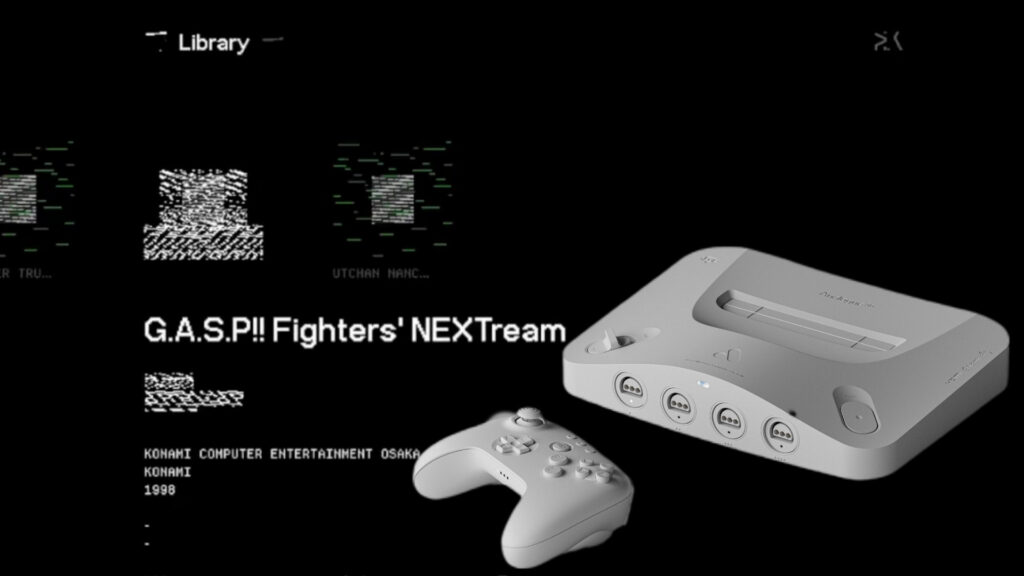
Following the release of the latest firmware update for the Analogue 3D console, a small number of users have reported a persistent issue where the device’s operating system (OS) displays with broken or corrupted graphics. While the device can still run games normally, the visual anomalies appear within the console’s operating system interface, particularly affecting the displayed cartridges.
This issue appears to be limited, as the majority of users who updated their firmware reported their OS update was absolutely fine. However, for those affected, two main solutions have emerged, with one being the initial recommended action.
Solution 1: Perform a Force OS Update
Before resorting to purchasing a new SD card, users are advised to attempt the Force OS Update procedure, which is detailed on the Analogue support page and may resolve the issue with the included SD card.
The procedure is as follows:
- Ensure the SD card containing the OS update file is inserted.
- With the Analogue 3D powered on, press and hold the pairing button.
- While holding the pairing button, briefly press the power switch.
- Continue to hold the pairing button until the power LED turns yellow.
Solution 2: Replace the SD Card
If the Force OS Update does not resolve the problem, the underlying cause may be related to the included SD card that shipped with the Analogue 3D console.
Some user reports suggest that the issue is linked to the low quality of the provided SD card, and that replacing it with a new, premium-branded SD card fixes the OS graphic corruption.
If the force update fails, the final recommendation is to:
- Purchase a high-quality, branded micro SD card (e.g., SanDisk, Samsung or Kingston).
- Transfer the OS update file onto the new SD card.
- Perform the update, using the new card.
This suggests that only a small batch of the bundled SD cards may be faulty, affecting their ability to properly handle the firmware update process.
You can check out Analogue 3D’s official troubleshooting guide here.